


Connect to Webshipper and manage Waybills in Dynamics 365 Business Central
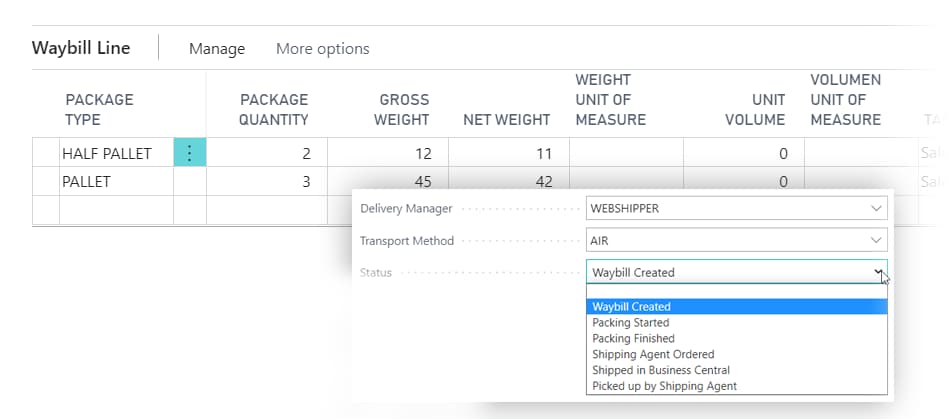
The Webshipper Shipping Connector app not only enables you to create waybills and connect to Webshipper to arrange shipping and get the best price for each parcel. It also allows you to calculate weight, dimensions, size, and volume as well as tariffs.
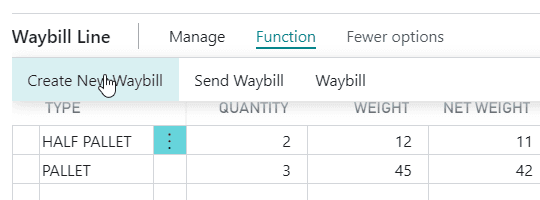
You create a waybill for each delivery address, and you may add multiple types of predefined packages (like boxes, pallets or containers) to the waybill.
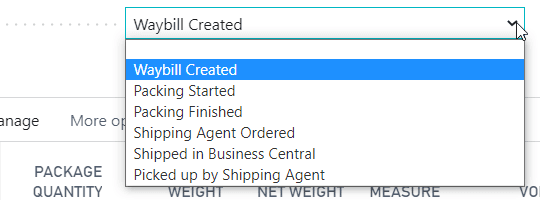
You then receive a label, you can print and put on the parcel, and the label of course depends on which freight forwarder you have selected in each case.
The label and the track & trace number is saved on the waybill in Business Central, from where you can also manage the status of the waybill, the shipping details etc.
You can assign a pickup-number to each waybill. This is information for the freight forwarder. It allows you to assign a waybill to a specific pickup, and then the freight forwarder knows exactly which parcels to pick up.
The Shipping Manager can also be configured to arrange shipping directly with Webshipper, without using a shipping broker.
For more complex situations, you may embed waybills into other waybills. This allows you to pick items to a box, add multiple boxes to a pallet, add multiple pallets to a container, and finally ship the container.

Shipping Manager + specific Connectors for freight forwarders
The Shipping Manager app provides the waybill functionality, and Webshipper Shipping Connector allows you to connect with Webshipper.
All Connectors are configured inside your Business Central – and the data exchange is executed by Microsoft Power Automate.
Both the Connector-apps and the Shipping Manager app are available on Microsoft Marketplace.
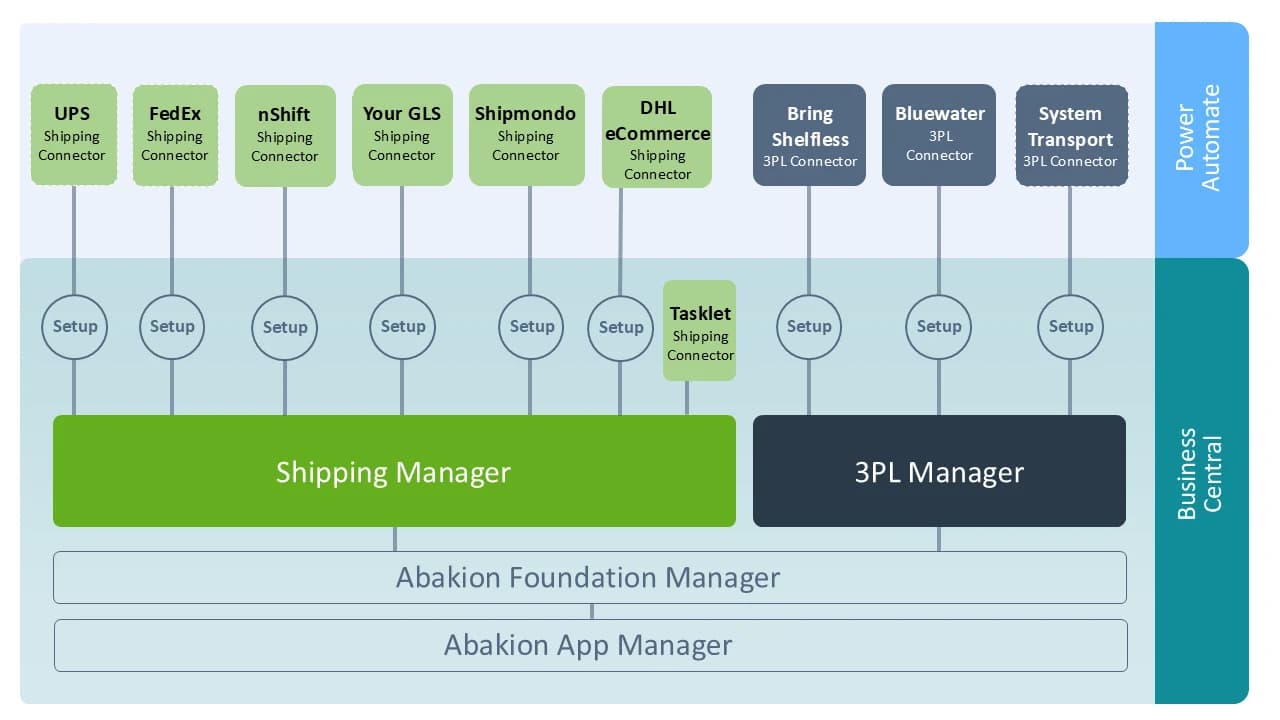
Webshipper Shipping Connector is part of an extendable structure
Basically, Shipping Manager is the integration app you get, and Webshipper Shipping Connector adds the specific connection to Webshipper.
The Abakion Foundation Manager includes the common functionality for all the integration apps. This way you can use multiple integration apps without getting duplicate fields and functionality. And the Abakion App Manager is the core extension management and subscription management.
On top of these, you can add the Shipping Manager and 3PL Manager apps. These apps provide integration functionality and APIs. And if you combine these with a connector app, you are ready to go. It’s actually quite simple. If you select a Connector-app from Marketplace, you automatically get the necessary fundamental apps. Our installer will handle it all for you.
But this structure also allows you (or your Business Central supplier) to build custom connectors to whichever freight forwarder or 3pl service. You can extend the solution with Power Automate in the Microsoft Power Platform.
For Partners:
If you are a Business Central-partner, watch this video to learn the technical details, and to see how you can utilize the app on client projects.
Abakion is your one-stop shop for Apps



Book a Q&A-session about the app
If you have questions about the app, you can sign up for a free Q&A-session with one of our experts. You can ask any questions you may have.
 Microsoft Teams · 20 minutes
Europe: 3 PM CET / UK: 2 PM GMT / East USA: 9 AM EST
Microsoft Teams · 20 minutesEurope: 3:45 PM CET / UK: 2:45 PM GMT / East USA: 9:45 AM EST
Great features with Webshipper Shipping Connector
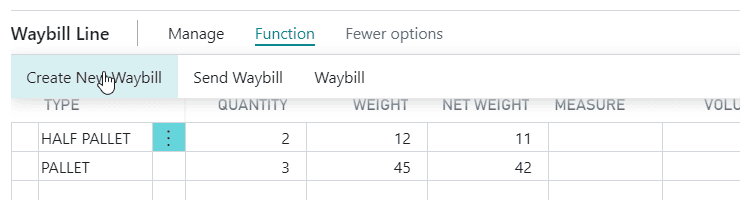
Create a new waybill from the Sales Order to plan shipping. Add waybill lines to combine types of packaging on the waybill, and enter the quantity, weight and volume of the packages.
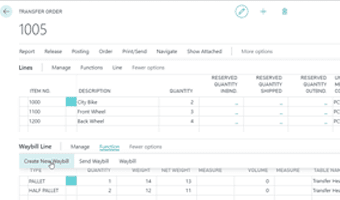
You can also manage waybills from a transfer order.
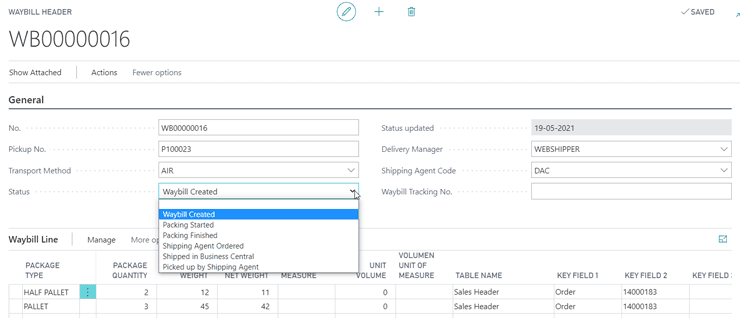
On the waybill itself, you can overview the status of the waybill, the shipping details, tracking number and much more.
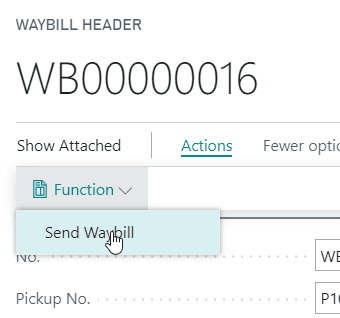
You can send the waybill from the sales order, from the transfer order, or from the waybill overview itself.
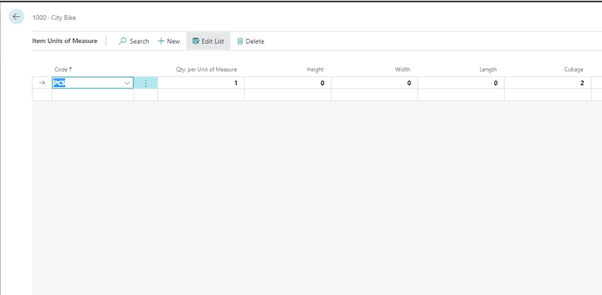
Required for calculating weight on the documents, the weight and measurements fields should be filled out on the Item Unit of measure card. The Shipping Manager extends these fields to be more extensive.
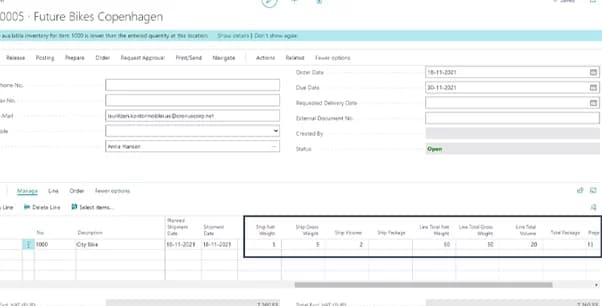
On order lines weight fields are automatically added and calculated both based on “Quantity to ship” and for the “total line” quantity.
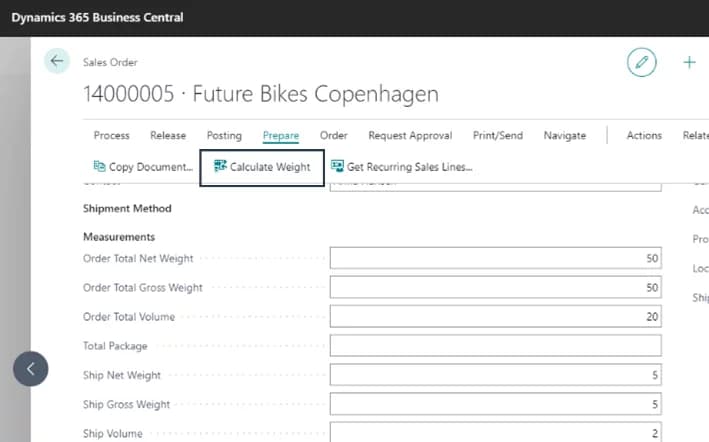
When the order is ready for shipment, a total calculation for the order can be performed.
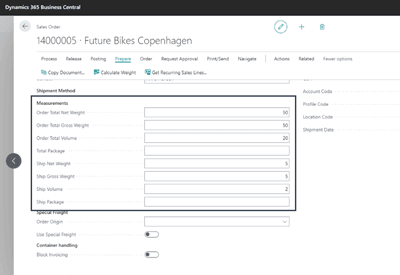
The total orders measurement can be seen under the fasttab Shipment Method.
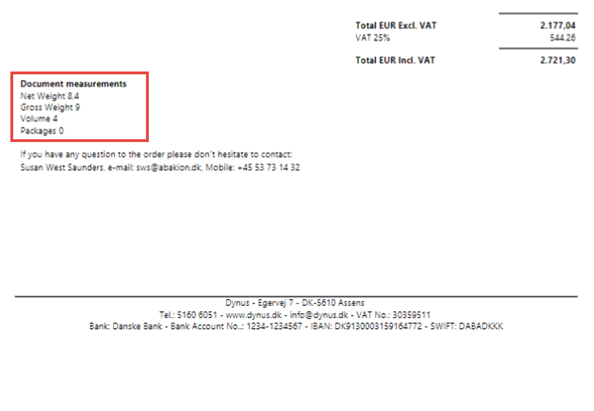
If you want the measurement information printed on your documents. This is possible with the app Document Customizer.
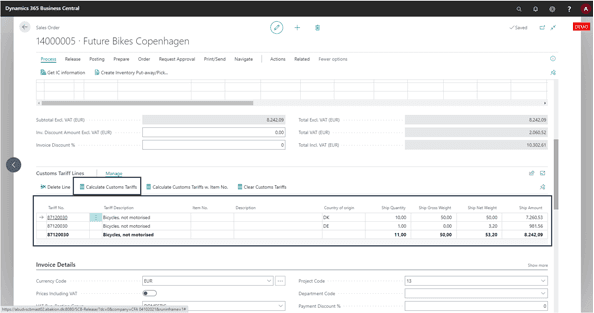
The app enables you to add Customs Tariffs to your documents. In this section, you can calculate Custom Tariff lines based on the Tariff Number.
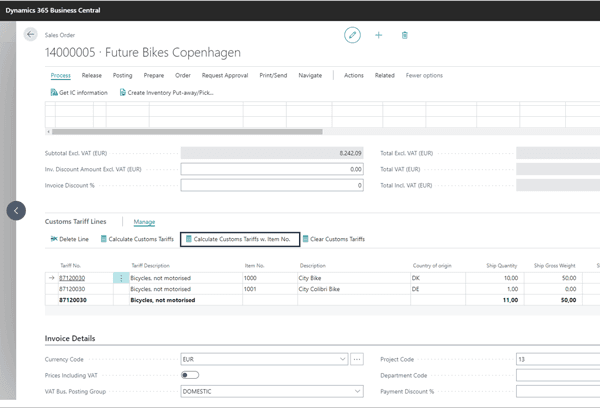
If needed, you have the option to further specify the Customs Tariffs down to the item level.

The Document Customizer app lets you print the Tariffs specification directly on your documents.

You can use delivery brokers like DHL eCommerce, nShift, Sendcloud, Shipmondo, Tasklet, Webshipper and YourGLS, but you may use any broker you like. Shipping Manager includes an open API that lets you connect to a broker or agent of your choice. We also offer to add a new connector for you for a fixed price.
Getting started with Webshipper Shipping Connector
Get a 30-day free trial
Install the app Webshipper Shipping Connector from Microsoft Marketplace. Available on the cloud edition of Business Central.
Get it on Marketplace »
Watch user guide videos
On Use Dynamics you can watch instructional videos to learn about the functionality of Webshipper Shipping Connector.
Watch videos »
Webshipper Shipping Connector pricing
Webshipper Shipping Connector
Available on the cloud edition of Business Central. The more users you subscribe, the cheaper each becomes. Watch video about the price model »
Get Webshipper Shipping Connector with 10 named users at €26,99 per user, per year. Annual subscription (You save 16,67%).
Subscribe »As part of the App Bundle
Get Webshipper Shipping Connector as one of the 5 apps you can select with the App Bundle.
The App Bundle allows you to pick any 5 Abakion Apps at a great discount. Read more about the App Bundle »
If you need more than 5 apps, the price of any additional app is reduced to only €0,00 per app per month at 10 users (annual subscription).
Calculate your total price of multiple apps »
Talk to a real human
Have a chat with our app managers Bo H. Hansen and Thomas Halse about pricing and subscriptions:
✉ appsales@abakion.com
We will reply in English.
Support
If you have specific questions about functionality or how to get started, you may contact our support team at frontdesk@abakion.com or call us at +45 70 23 23 17. We will help you find the right video guides, if available.
We strive to provide you a qualified response as quickly as possible, at least within 24 hours but often much quicker.
At all times we will keep you informed about who is working on your support inquiry and how soon you can expect a response.