


Pack and Ship Containers with multiple Sales Orders in Dynamics 365 Business Central
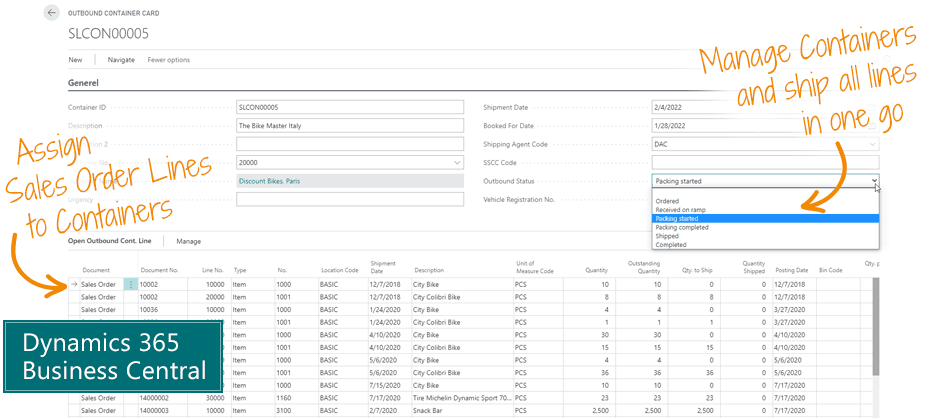
Use the Sales Container Handling app to pack Containers with Lines from multiple Sales Orders and ship it all in one go.
Combine sales order lines into one container
Combine sales order lines from multiple sales orders into a container – and ship it in one go.
From the sales order, you can select lines and assign them to a specific container. Then you can manage all lines at the same time when you plan shipment of the container.
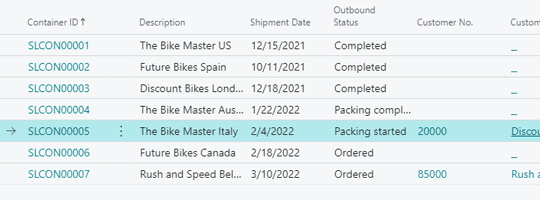
In the outbound container list, you can get an overview of your current containers and see which ones are available, which have started packing, and which are already shipped.
Keep track of volume and weight
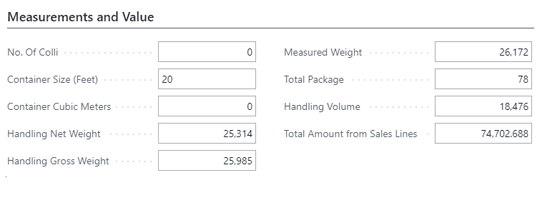
Always keep track of the available volume, quantity, net weight and gross weight of each container. The planner can easily check if the container is full.
This app works for sales orders, including transfer order lines. Containers may of course be any kind of unit you use for shipment.
Main benefits of Sales Container Handling for Microsoft Dynamics 365 Business Central
- Bundle outbound lines from multiple orders into one unit – and calculate total volume and weight of all lines.
- Save time in planning outbound shipments – and in the warehouse packing.
- Make it transparent for everybody which lines are shipped in which containers.
Abakion is your one-stop shop for Apps



Great features with Sales Container Handling
Select container on order lines
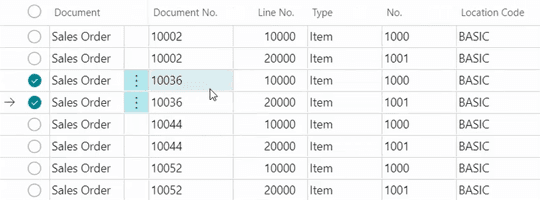
On the sales order lines and transfer order lines, you can assign the outbound container code and see which container they have been allocated to.
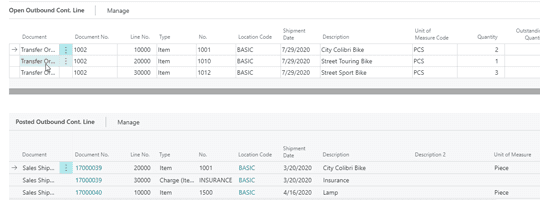
Overview lines on containers
On the container card you can get an overview of all lines assigned to the container, both open and posted lines.
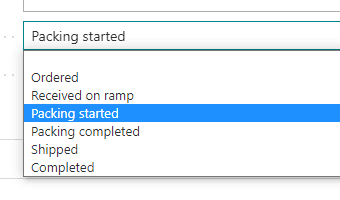
Manage container status
The container can have the status of Ordered, Received on ramp, Packing started, Packing completed, Shipped or Completed. This status determines your options.
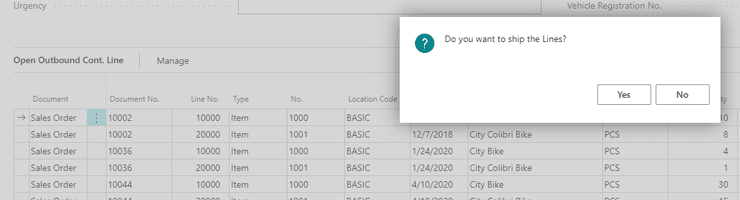
Ship the container in one go
When you ship the container, you can do it as a single shipment, and the solution will ship all included lines across sales orders and transfer orders. You don't have to ship each one individually. This also works if you are using the warehouse functionality of Business Central.
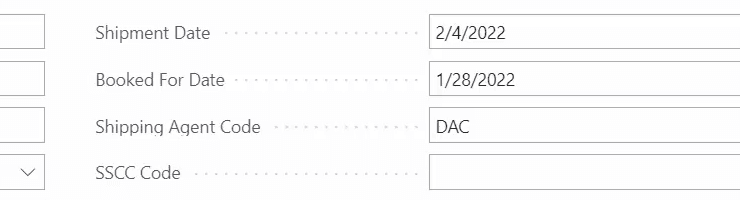
Change shipment date
If you change the shipment date on a container, it will ask if you want to change the shipment date on all lines across all sales orders and transfer orders. This saves you a lot of time.
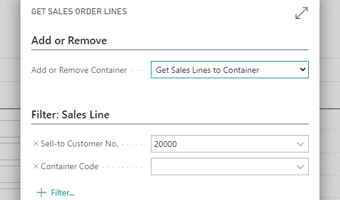
Get suggestions to pack a container
You can ask Business Central to suggest sales order lines to be included in a container. You just select a customer, and you get a list of relevant sales order lines to select from.
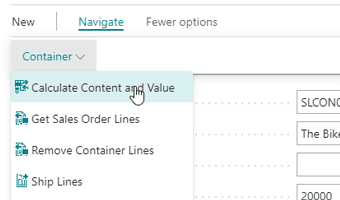
Calculate totals of a container
You can trigger a recalculation of the measurements and totals of the items in the container, including net weight, gross weight and measured weight. Then the planner can evaluate if more is needed in the container.
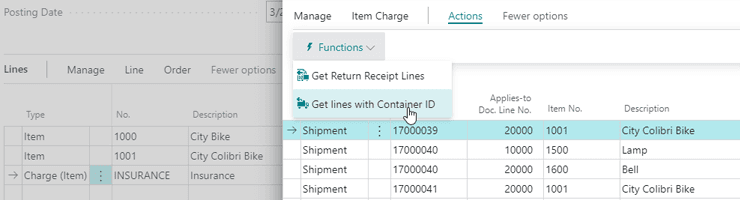
Apply item charges to lines in a container
You can easily apply item charges to all outbound lines in the container. That could be both costs (purchase item charges) or services sold (sales item charges).
Getting started with Sales Container Handling
Get a 30-day free trial
Install the app Sales Container Handling from Microsoft Marketplace. Available on the cloud edition of Business Central.
Get it on Marketplace »
Read the step-by-step guide
We guide you from installation and configuration to your first use of Sales Container Handling.
Read the guide »
Watch user guide videos
On Use Dynamics you can watch instructional videos to learn about the functionality of Sales Container Handling.
Watch videos »
Sales Container Handling pricing
Sales Container Handling
Available on the cloud edition of Business Central. The more users you subscribe, the cheaper each becomes. Watch video about the price model »
Get Sales Container Handling with 10 named users at €67,46 per user, per year. Annual subscription (You save 16,67%).
Subscribe »As part of the App Bundle
Get Sales Container Handling as one of the 5 apps you can select with the App Bundle.
The App Bundle allows you to pick any 5 Abakion Apps at a great discount. Read more about the App Bundle »
If you need more than 5 apps, the price of any additional app is reduced to only €5,62 per app per month at 10 users (annual subscription).
Calculate your total price of multiple apps »
Talk to a real human
Have a chat with our app managers Bo H. Hansen and Thomas Halse about pricing and subscriptions:
✉ appsales@abakion.com
We will reply in English.
Support
If you have specific questions about functionality or how to get started, you may contact our support team at frontdesk@abakion.com or call us at +45 70 23 23 17. We will help you find the right video guides, if available.
We strive to provide you a qualified response as quickly as possible, at least within 24 hours but often much quicker.
At all times we will keep you informed about who is working on your support inquiry and how soon you can expect a response.