

Getting Started with Master Data Information
1. PURPOSE
"Master Data Information" is one of the most versatile apps, so there may be many reasons why you want to install and test the solution.
It may be that you simply want to add some fields, or that you want to build a complete hierarchy of master data and use Business Central as a PIM system.
Whatever your plan, we think you should start with 4 training exercises that teach you the basic functionality of Master Data Information. Then you're off to a good start. This article will guide you through the exercises to get started.
2. INSTALLATION
The first step is to install the app from Microsoft AppSource.
Please install and test the app in a sandbox before you deploy it to your production environment. The exercises will create and post data, and such testing should always be done in a sandbox environment.
Once you've installed the app, check your Role Center in Business Central for a notification at the top of the screen about Master Data Information. Please follow the instructions in the notification.
3. WATCH VIDEO
Now it is time to watch the getting started video. We have prepared 4 exercises for you, and in the video, Sune Lohse will guide you through each exercise, one at a time.

4. EXERCISE 1: Add a new Specification to an Item and set it up to flow to a Sales Order
I would like to create a new Specification "Brake Type" with the selections "Disc Brake" and "Roller Brake", and to add selection "Disc Brake" to Item 1100 "Roller Brake" to Item 1200.
I would like to make those Specifications flow through to the Sales Order Lines, with the purpose of printing it on the Sales Order Confirmation.
Exercise:
- Setup the Specification as above and attach it to the two items.
- Setup the Master Data on Document required.
- Create a Sales Order for Customer 20000 with two lines for the Items, with quantity 2 and 4.
- See how the Master Data Information exist on the related Master Data Information for the Sales Order Line.
5. EXERCISE 2: Add a Specification directly as a field on the Item Card and Sales Order Line
I would like to be able to see and modify the specification "Brake Type" directly on the Item Card and the Sales Line.
Exercise:
- Setup the specification "Brake Type" as a field for both Items and Sales Order Lines in the Master Data Information Setup using the Specification on Pages functionality.
- Update the existing records with the new setup.
- See how the fields are filled in on the Item Card and Sales Order Line.
6. EXERCISE 3: Add Extended Text to a Customer and set it up to flow to a Sales Order
I would like to create a new Text "Confirmation Type" with the selections "Reply soon" and "Standard".
On the "Reply soon" selection I would like to add Extended Text "If this order confirmation does not reflect what was agreed, please reply and let us know as soon as possible".
On the "Standard" selection I would like to add Extended Text "We hereby forward Order Confirmation for what we agreed upon".
I would like to make those Text flow through to the Sales Order, with the purpose of printing it on the Sales Order Confirmation.
Exercise:
- Setup the Text as above and attach it to the Customer 20000 and 7100.
- Setup the Master Data on Document required.
- Create a Sales Order for Customer 20000 with a line for Item 1100 quantity 2.
- See how the Master Data Information exist on the related Master Data Information for the Sales Order.
7. EXERCISE 4: Add Languages to Extended Text and set it up to flow to a Sales Order
I would like to create language specific text for the Text "Confirmation Type" to be able to communication in correct languages for my customers.
For the Spanish language code, I would like to add:
On the "Reply soon" selection I would like to add Extended Text "Si esta confirmación de pedido no refleja lo acordado, por favor contactenos y déjenos saber lo antes posible".
On the "Standard" selection I would like to add Extended Text "Por la presente enviamos la Confirmación del pedido como acordado".
I would like to make those Text flow through to the Sales Order, with the purpose of printing it on the Sales Order Confirmation.
Exercise:
- Setup the Text as Spanish languages on Text "Confirmation Type".
- Look at Customer 71000 only to confirm that the Language Code is ESP.
- Create a Sales Order for Customer 71000 with a line for Item 1100 quantity 2.
- See how the Master Data Information exist on the related Master Data Information for the Sales Order.
SUPPORT
Abakion Front Desk is ready to assist you in all phases of the process. If you have a support agreement with Abakion, contact us on +45 70 23 23 17 or frontdesk@abakion.com.
If you haven't subscribed to Master Data Information yet, reach out to us at appsales@abakion.com. Then we'll help you get started.
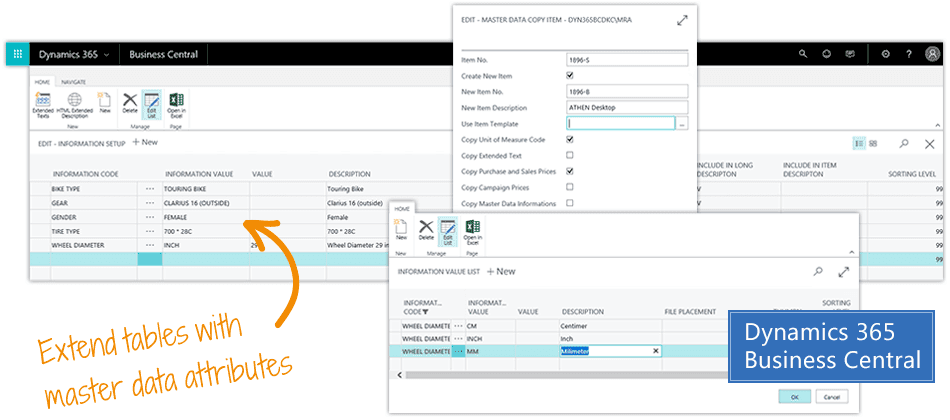
Master Data Information enables you to define your own master data structure in Business Central