

Getting Started with Global Master Data Sync
Download this page as PDF in English
1. PURPOSE
You have chosen to evaluate or get started with Global Master Data Sync for Dynamics 365 Business Central, and you probably have one of the following three purposes:
- You want to manage rights to change master data centrally and locally. Your group has a well-defined data structure and has introduced rules about which companies may create and edit which data. Everyone must follow the procedures and you want a system to enforce that.
- You want an easy way to create new companies. You don't want to enter configuration data and master data manually every time you create a new company. You need a tool that makes it easy.
- You have labor-intensive, repetitive work processes with data where you have to transfer and enter data manually. You want to automate that.
2. INSTALLATION
The first step is to install the app from Microsoft AppSource. Once you've done that, check your Role Center in Business Central for a notification at the top of the screen about Global Master Data Sync. If a notification appears, the app requires necessary information, and then you must start by following the instructions in the notification.
When you're done with that, the app is installed and ready.
3. OPEN THE ROLE CENTER
Global Master Data Sync has its own Role Center where everything relevant is available. There are functions, configurations and templates. So, the first thing you should do in Business Central is to open the Role Center for Global Master Data Sync.
You do this by selecting 'My Settings' and selecting the Role Center called 'Global Master Administrator'. Now you have verified that the app is ready to use.
4. CREATE AN OVERVIEW
Before you start setting up Global Master Data Sync, you must create an overview of the project. Start by writing down what you would like to achieve overall by synchronizing.
We suggest that you then draw on paper which data you would like to move between which companies. Choose which tables and fields you want to synchronize, and which company will own the data.
It could be, for example, that you want to synchronize the Chart of Accounts, Customers and Items, and that you would like to centralize the maintenance, so that only the head office can change the Chart of Accounts, and the subsidiaries cannot create new accounts on their own initiative.
5. GET COUNSELING
When you have a conceptual overview of your planned synchronizations, it is a good idea to get advice from a consultant with experience in synchronization before setting anything up in Business Central.
There are several reasons for this:
- We would like to talk about the consequences of your decisions. Are you sure that all subsidiaries must contact the head office every time they need to change or create an item or a customer? Often, it’s better to find a golden mean, and we can help with that as consultants.It could be, for example, that new items may only be created in the "master" company, but that you allow the item to be edited locally to add item texts in the local language. It is not always entire tables that should be open or locked.
- There are also simple, practical pitfalls. If you move a cost price to another company that operates in a different currency, then a cost price of 100 euros suddenly becomes 100 dollars. We help you avoid such pitfalls.
- If you want to synchronize the Chart of Accounts, Customers and Items, you will probably think that 3 tables must be synchronized, but unfortunately Business Central is not that simple.On the Chart of Accounts alone, there are 15-20 tables that must be synchronized. Regardless of which tables you have chosen, there are often several other tables with configurations and supporting data that must be included.
- There are also fields that Business Central does not want us to synchronize. These are fields that Business Central itself must calculate in the receiving companies, in order for the data to enter correctly. We must not overwrite those fields.
6. LEARN THE FUNCTIONALITY
Once we have a solid plan, we are ready to set it all up in Business Central. You can choose to do this yourself or get help from a consultant.
If you want to do all the work yourself, or just part of it, then you must learn how to use Global Master Data Sync. It is quite intuitive if you are used to using Business Central, but it is a good idea to watch the training videos on Use Dynamics.
It is a guided course of 59 instructional videos that take you through the following functional areas:
- Getting started
- Introduction to fields and actions on templates
- Creation of templates
- How to use template packages
- Introduction to the Global Master Administrator role center
- Global master setup
- Partners / subscribers card
- Particular features on templates
- Daily use for the subscriber
7. START BY TESTING
You must test everything in a sandbox. This is an important point.
Synchronization can do a lot of damage because it is a tool designed to overwrite data and lock data in other companies. If it is configured incorrectly, it can corrupt data or put operations at a standstill.
There are tools available to undo actions, but you cannot always roll back everything. And if you lock fields in subsidiaries, you must be sure that this does not stop their daily work processes.
There are few people who have a role where they know all processes in all departments across all companies. Therefore, it is important to test the setup in a sandbox. It's mandatory.
8. USE TEMPLATES
There is no reason to build everything from scratch yourself. You can use one of the templates that come with the solution. Then you are also protected against basic misconfigurations.
If you transfer too many tables and data, then you destroy the existing setup, and if you transfer too few tables and data, then data is missing and then you get an error in the synchronization.
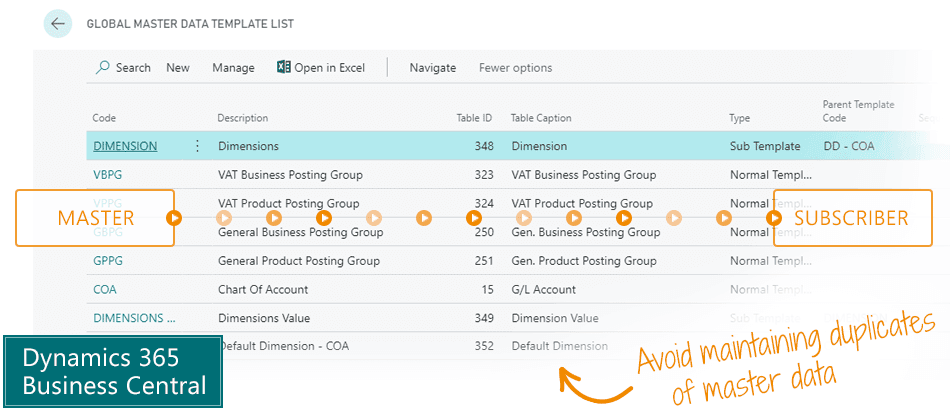
To make it easier, we have created templates. The templates ensure that you get all relevant tables when you choose to synchronize the chart of accounts, for example, and that we synchronize all the fields that we should and only those that we are allowed to.
Use the template. It takes too long time to set it up yourself from scratch. You can find the templates on the Role Center for Global Master Data Sync.
9. COMPLETE THE SETUP
If you've followed this guide, you probably won't experience any challenges along the way, but if you've jumped straight to this point, you'll probably experience sync errors when you start transferring data because the system is missing specific data. This is often due to data missing or not being loaded in the correct order. You may need to synchronize a posting group before synchronizing other data that depends on that posting group.
If you don't quite understand the error message, it's easy to get stuck. Then it feels difficult. It's not really the synchronization tool that is difficult, but it does require some experience with the data structure in Business Central to set up the first synchronizations.
If you experience this, go back to the first steps of the process of drawing the synchronization conceptually and have an experienced synchronization consultant verify the concept. Then you will immediately reach the goal.

SUPPORT
Abakion Front Desk is ready to assist you in all phases of the process. If you have a support agreement with Abakion, contact us on +45 70 23 23 17 or frontdesk@abakion.com.
If you haven't subscribed to Global Master Data Sync yet, reach out to us at appsales@abakion.com. Then we'll help you get started.